|
NEWSLETTER: Magic Linking in Ravelry Groups
|
|
|
This is a continuation of our Ravelry How-To series. If you'd like to see past articles, click here.
Now that you're learning about Ravelry, visit the LMB Designs Ravelry group and introduce yourself, post photos of your finished projects and ask questions. And for those of you who participate, you will be eligible for fun drawings for prizes! Keep an eye out for more details in the group!
|
|
Magic Linking - What is it?
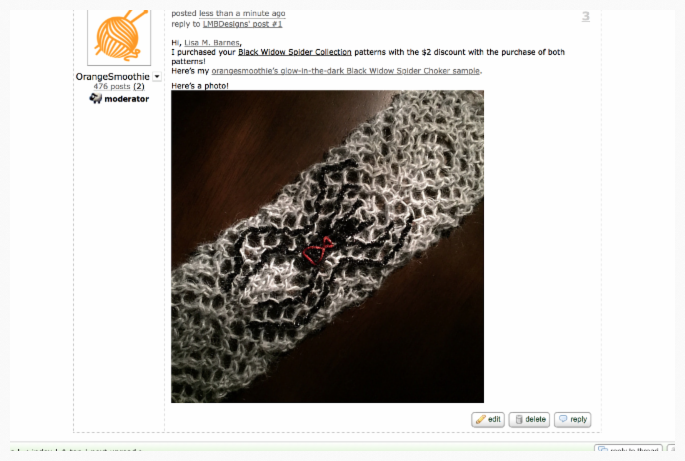
When you create a post in a group, magic linking is a way to create a hyperlink just by clicking on a word or phrase. Magic linking is really handy when you want to share a project, photo, pattern or person.
How to Magic Link in a Post
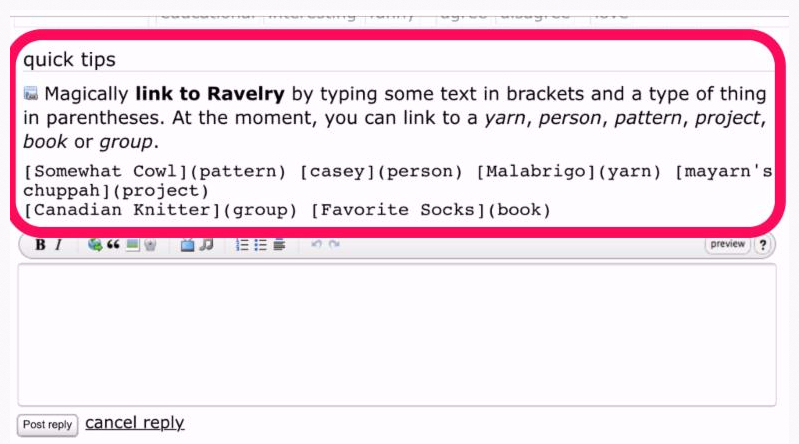
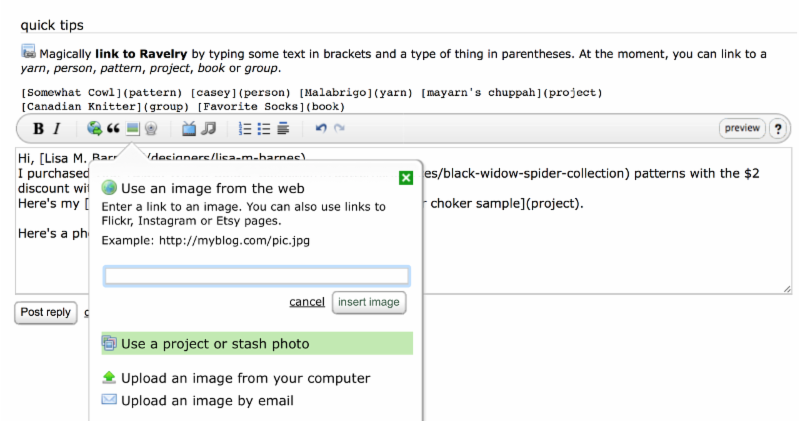
Just above the box in which you type your post, you'll see a quick tips section:
Linking to People (Earburning)
If you add a link to a person, this notifies the person that you've mentioned him/her in post. This is known as
earburning. The linked person will automatically receive an email in Ravelry with the subject: Are your ears burning? You've been magic linked in LMB Designs Group.
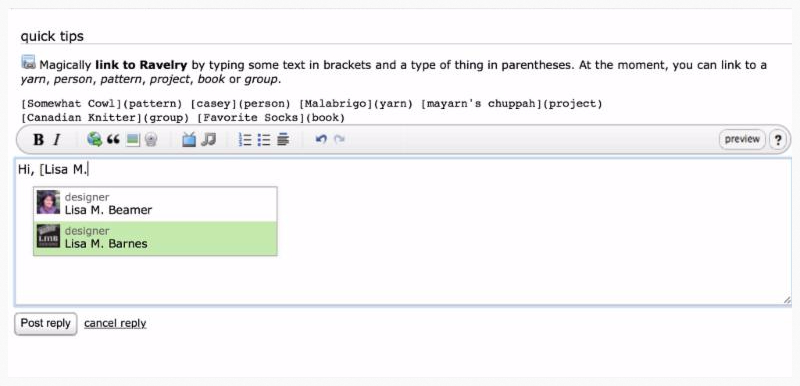
By referring to the quick tips, you see that you'll need to start by typing a square left bracket (like this [), then the person's Ravelry name, then a right square bracket, then (person) . You'll notice that Ravelry will suggest some other names for you that will save you having to type it all out! If you see the person you want, just click on that suggested link and Ravelry will add the code to your post.
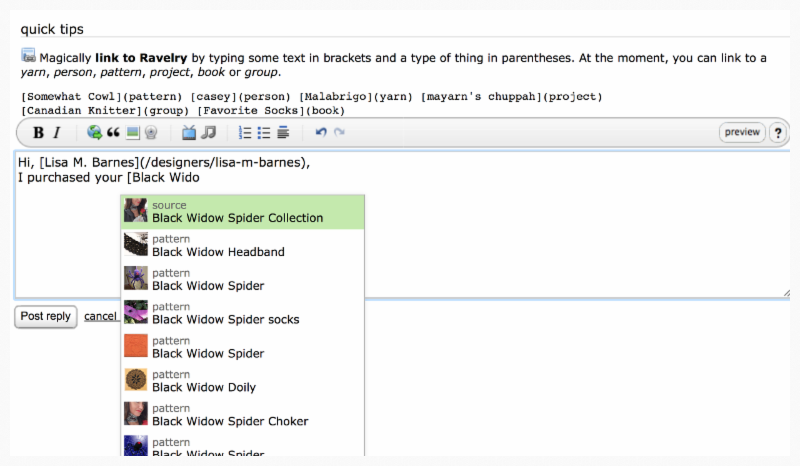
Linking to Patterns The same method works for adding a pattern link to your post. Just start with the bracket and type the pattern name. Ravelry will suggest the names of patterns from which you can select. Click on the one you want to add to your post.
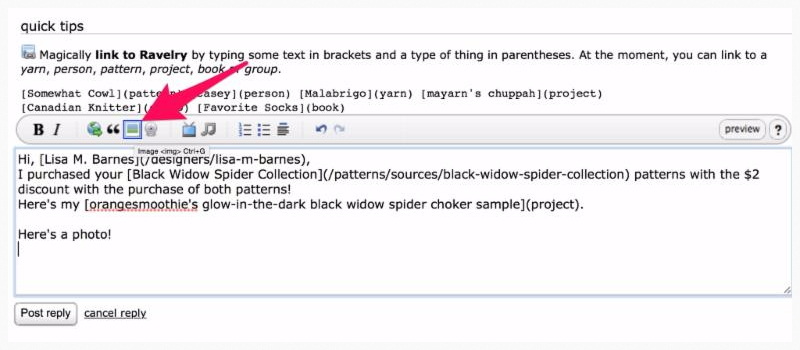
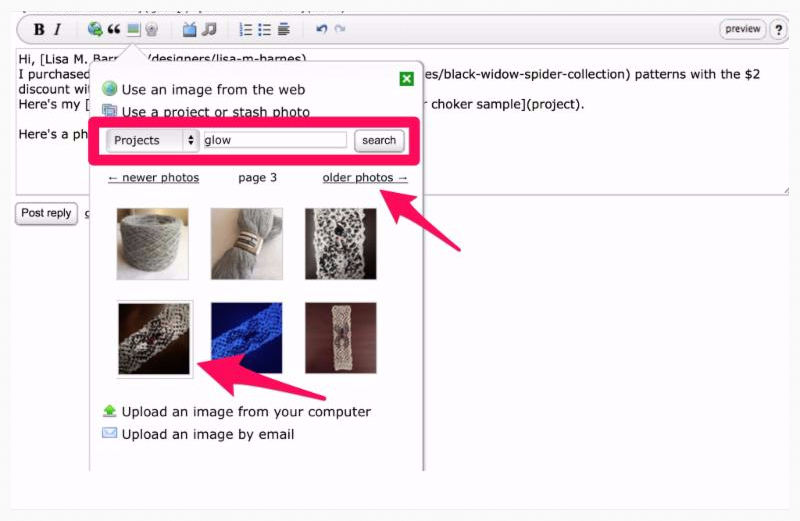
Adding a Photo From Your Project To add a photo to your project, click on the photo icon: You can select from the drop down to use a project or stash photo, or upload image from your computer or by email.
Also, if you know the project name of the photo, you can include it in the search box. Scroll through newer or older photos until you see the photo you want to add to the post. When it's found, just click on it.
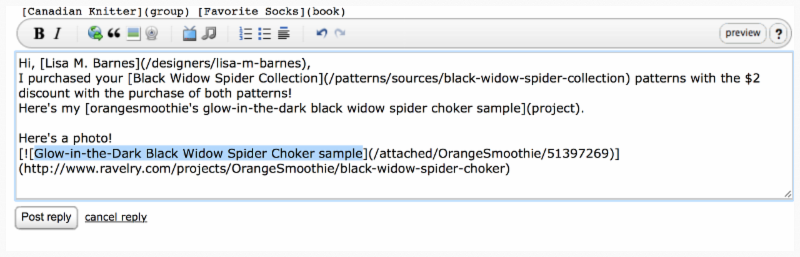
Ravelry will then show you the photo and ask you if you'd like to use this photo to confirm. Just click on the
use this photo button and you'll see the code for that photo added to your post.
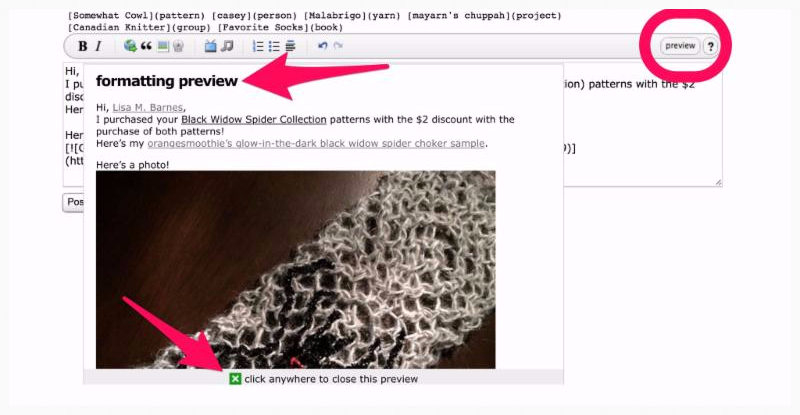
Preview Your Post You can now click on the preview button to check your post to make sure everything looks correct. To get out of the formatting preview window, just click anywhere in the window to close it.
Publish Your Post
Once everything looks good, just click on the post reply or start topic button and your post is published to the group!
Now you know how to magic link in Ravelry groups!
|
Come join me on Ravelry and let's knit together!
Lisa M. Barnes
|
|
|
|
|
|
|
|
| |