PowerPoint Stress Relief from eSlide
Issue 63
Get Your PowerPoint Presentation Game Ready
March Madness Inspires eSlide's Designers This Month
We turn to the basketball court this month as it's March Madness time again. So whether you're a fan of Duke, Kentucky, Kansas, Syracuse or UCLA, or you've got your eye on one of the teams slated to be the NCAA Tournament's 2016 Cinderella Story (Valparaiso, Evansville or Belmont anyone?), you'll know that no player performs in isolation.
The best teams draw on the strengths of all of their players, a lot like the components of the best PowerPoint presentations. So when you are tasked with bringing large amounts of data to life, e.g., the results of a 64-team tournament (68 if you're counting the two 'play-in' games), the best way to ensure a big win is with a PowerPoint presentation that pools the talents of all its players. Read more.
eSlide's Quick Tip of the Month
Optimizing Screencaps
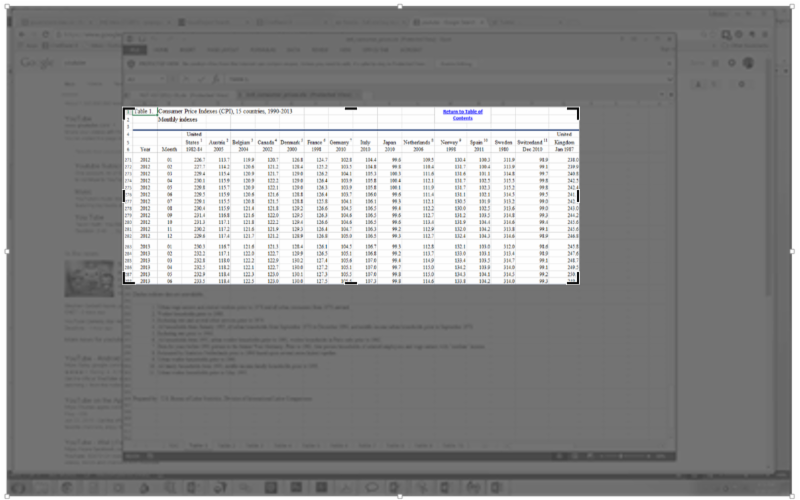
You can create a screen capture by pressing the PrtScreen button in the upper right corner of your keyboard, which copies the entire screen, and then pasting (CTRL + V) into PowerPoint. You can then resize and crop using PowerPoint's image editing tools.
1) To Resize, select the image and drag from the small white circle on any corner
2) To Crop, right-click on the image and select "Crop"
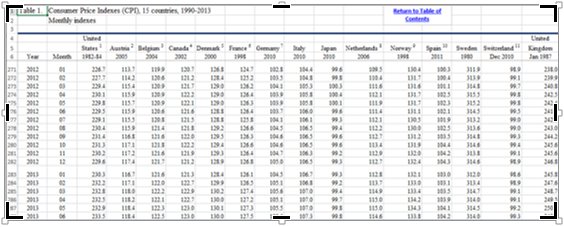
3) Drag on any of the black bars around the edges and on the corners to crop
The problem is that the crop tool doesn't actually crop the image; it only masks it. This means the entire full-screen image is still embedded in the file, which can add a lot to the file size. Additionally, any subsequent user can use the crop tool to reveal the hidden parts of the image, which could be a problem if it contains sensitive information.
An easy way to permanently delete unwanted portions of an image is the use of the "Compress Pictures" tool.
1) Select the cropped image
2) Select the "Picture Tools/Fromat" tab from the menubar
3) Then select "Compress Pictures"
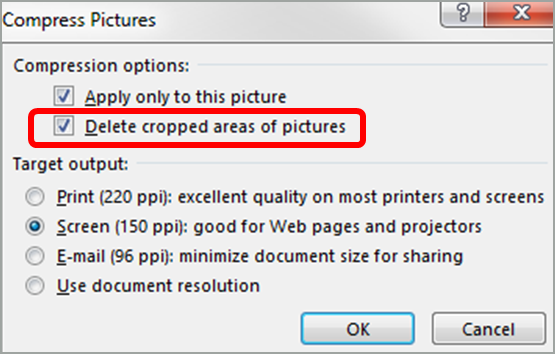
In the Dialog box that appears, check "Delete cropped areas of pictures" and then click OK. You can also set the resolution level to further reduce file size. "Screen (150ppi)" is usually the best trade-off of file size vs. image quality. "Use document resolution" will apply no extra image compression.
Now your image will contain no extra hidden information and will have a much smaller file size to boot. 
Ask the PowerPoint Experts
Do you have a question about working with PowerPoint?
Send them to us! We'll choose one to answer in our next newsletter.
For a free copy of our PowerPoint Keyboard Shortcut reference sheet, just email us!
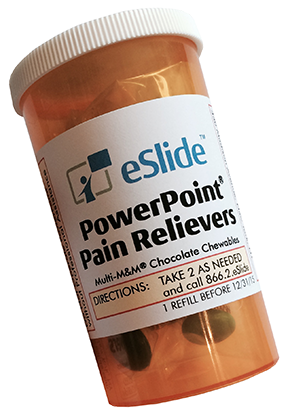
Click here to order your PowerPoint Pain Relievers or just respond with your name, address, and what you find most painful about PowerPoint.
FORWARD to colleagues who need help with PowerPoint ǀ FOLLOW US on Facebook
Call 866-237-5433 or email us for a Presentation Consultation

eSlide | 330 Madison Ave. | New York | NY | 10017