|
|
|
PowerPoint Stress Relief from eSlide
|
Issue 56
|

Keep PowerPoint Elements in Line with Grids, Guides, and Rulers
|
|
Need to visually line something up on your PowerPoint slide? Gridlines, guides, and rulers are easy to turn on.
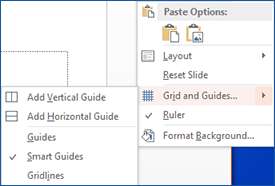
Right click a spot just outside your slide (not in the sidebar), and a drop down menu will appear with a "Grids and Guides" section. You can add your own individual vertical or horizontal guides, set up Smart Guides, or turn on the gridlines. This drop down menu is also where you can turn your rulers on and off.
|  |
|
|
| If you need to move your individual horizontal or vertical guidelines around, put your cursor over the line and drag them. To make items "snap" to your guidelines, right click them to get the drop down menu again, select "Grid and Guides" again, and select "Snap objects to grid". You can also customize the grid spacing here too. |
|
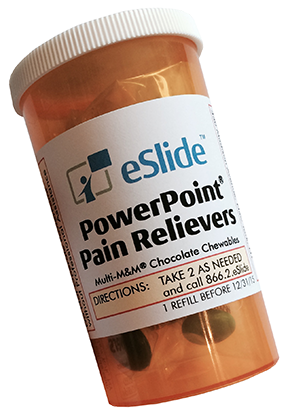
Click here to order your PowerPoint Pain Relievers or just respond with your name, address, and what you find most painful about PowerPoint.
|
Ask the PowerPoint Experts
Do you have a question about working with PowerPoint?
|
For a free copy of our PowerPoint Keyboard Shortcut reference sheet, just email us! |
to colleagues who need help with PowerPoint ǀ FOLLOW US on Facebook |
|
|
|
|
|
|
|