One of the great benefits of Ravelry is the ability to search and purchase patterns based on a variety of criteria that you choose.
Starting Your Search
Let's say you had 400 yds of fingering weight yarn that you wanted to use to make an easy knit shawl. You want to find a free pattern that you can download from Ravelry so you could get started right away.
To begin, go to
Ravelry.com and click on the
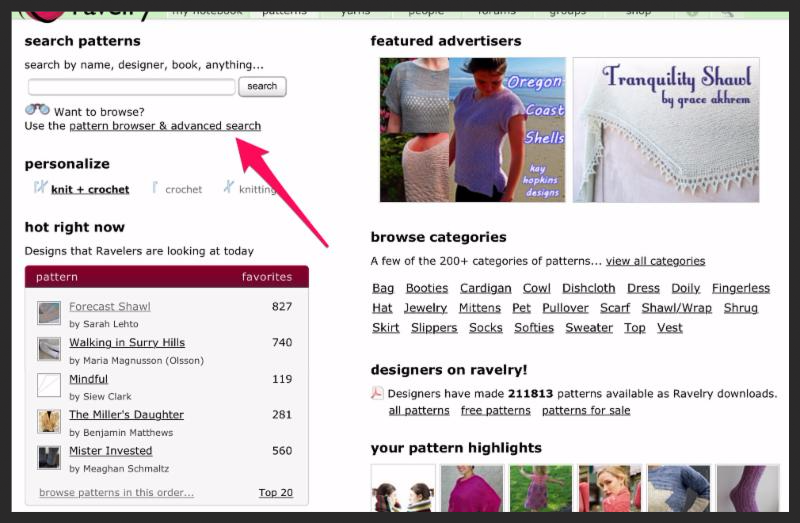
Patterns tab, then click on the
Use the Pattern Browser and Advanced Search link:
Down the left side of the screen are filters. You can either use the dropdown box "Jump to a Filter" (at the top of the stack of filters) to select a filter or just scroll down the page. Choose the Craft filter and select Knitting:
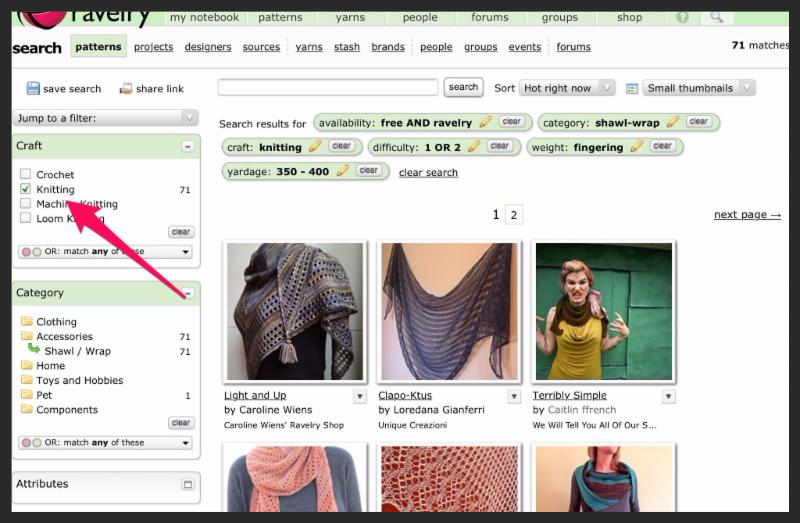
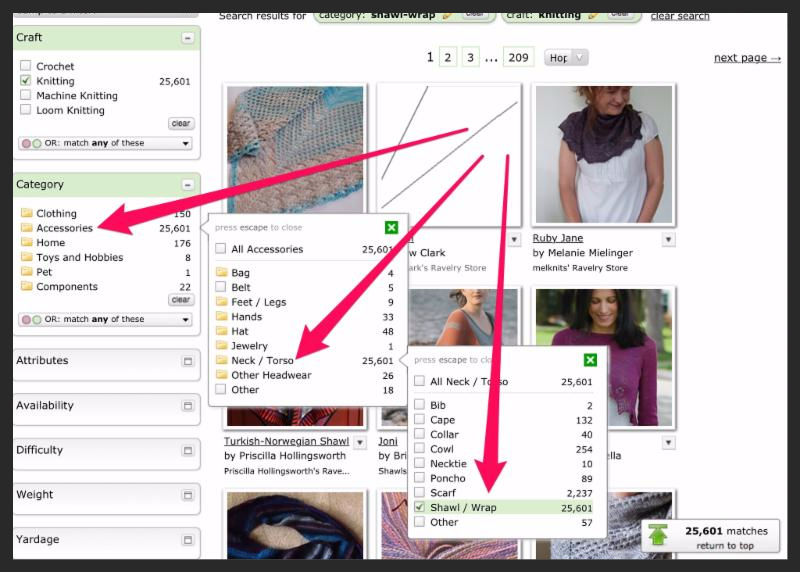
All the patterns in Ravelry that are tagged as knitting patterns are now displayed! To narrow this down to make a shawl, choose the filter, Category, then choose Accessories, then Neck / Torso, then Shawl / Wrap (you will need to click on the green X boxes to close those last two filters so you can see your results):
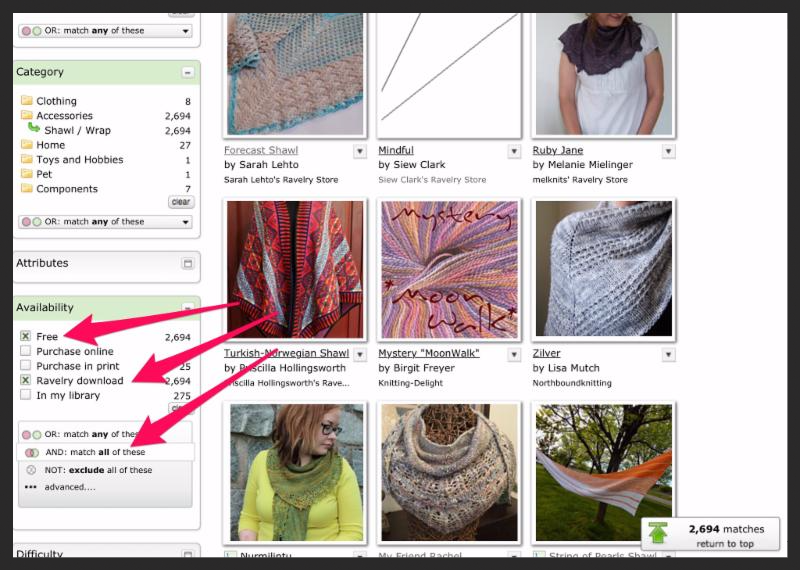
Because you want to download a free Ravelry pattern, select the Attributes filter, then select Free and Ravelry Download and then at the bottom, choose AND to match both criteria:
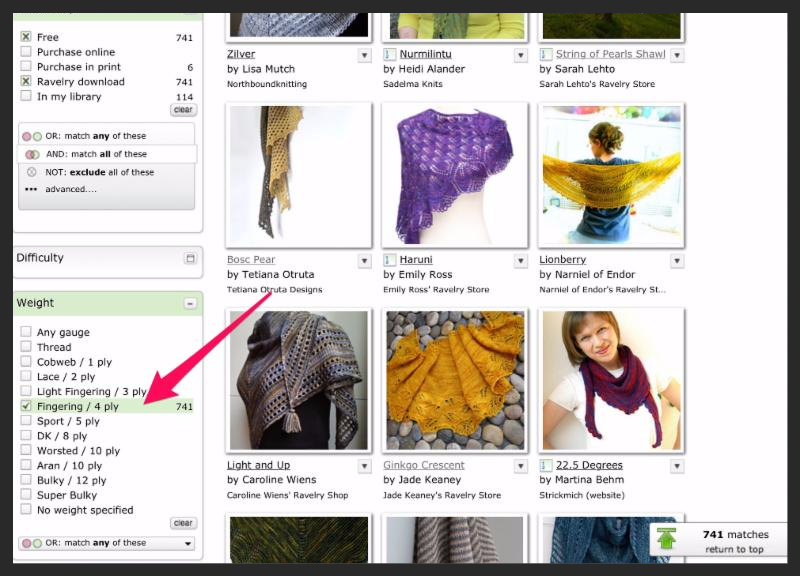
To filter for fingering weight yarn, select the Weight filter and choose Fingering:
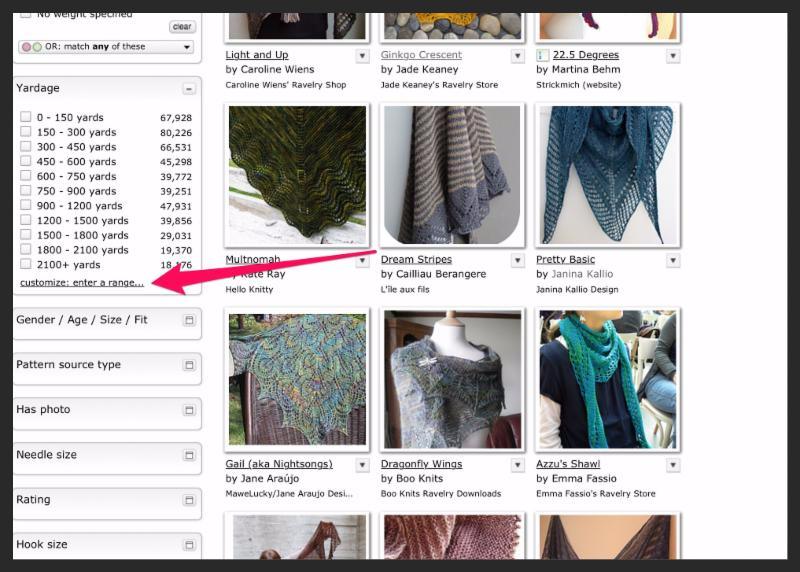
And because you only have one skein of 400 yds, select the Yardage filter and at the bottom of that box, select Customize: Enter a range:
Type in 350 to 400 in the range boxes and click the Apply button.
Lastly, for the level of difficulty, select the Difficulty filter and select both 1 - piece of cake and 2 - easy. As you can see at the bottom of that filter box, Ravelry defaults to OR so if a pattern is rated either 1 - piece of cake OR 2 - easy, then that pattern will show up in the results. Note: these difficulty ratings are based on other Ravelry users' ratings so it may be easy for an advanced knitter, but more difficult to a newer knitter.
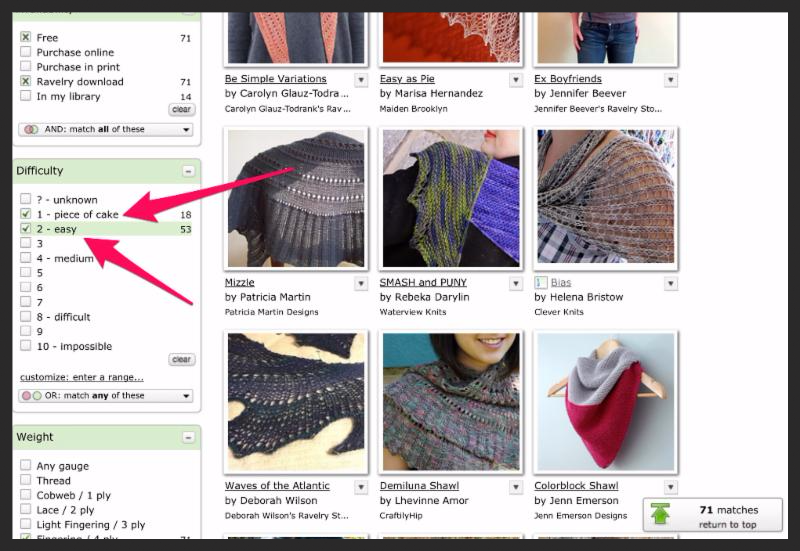
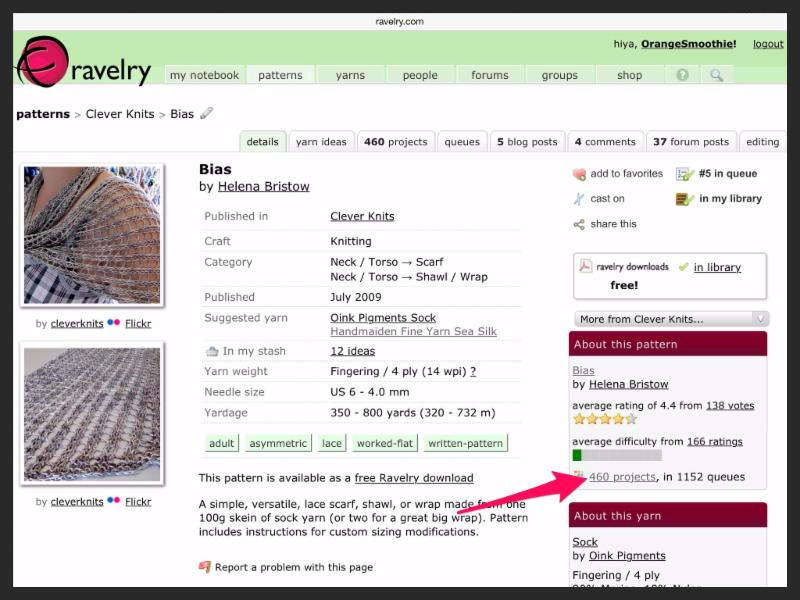
Selecting a Pattern You can now click on a pattern that appeals to you for more information to see if it is something you'd like to make. For this exercise, let's take a look at Bias by Clever Knits.
On the right side of the screen, you'll see the number of projects listed. If you click on that link, you can see other Ravelers' ratings and their project pages with their notes and photos.
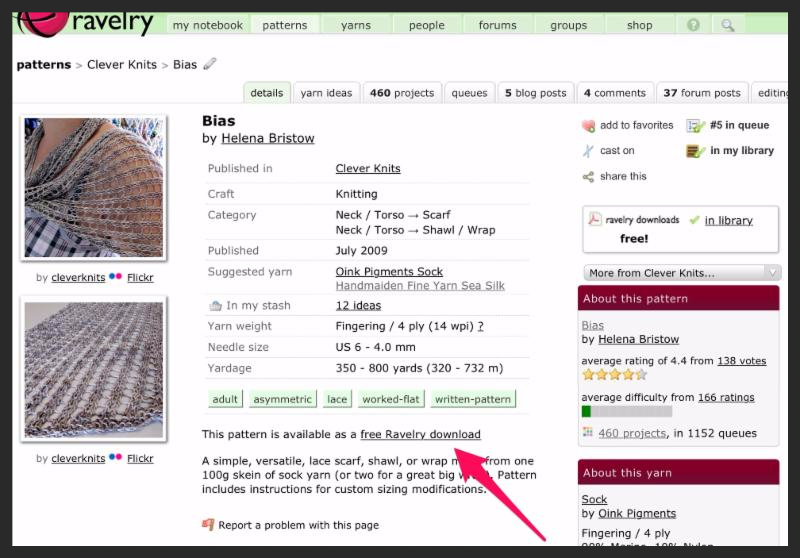
Since this pattern is free, you can click on the F
ree Ravelry Download link and select
Download PDF. You can also click
Store in Library to have the pattern saved in your Ravelry library.
Buying a PatternIf you don't find a free pattern that you like, you can return to your search page go to the
Availability filter and unclick
Free.
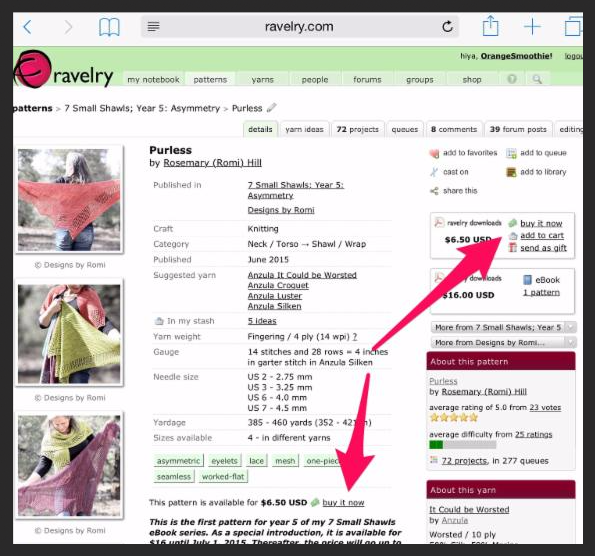
If you've decided you'd like to purchase a pattern, just click on the Buy It Now link. . .
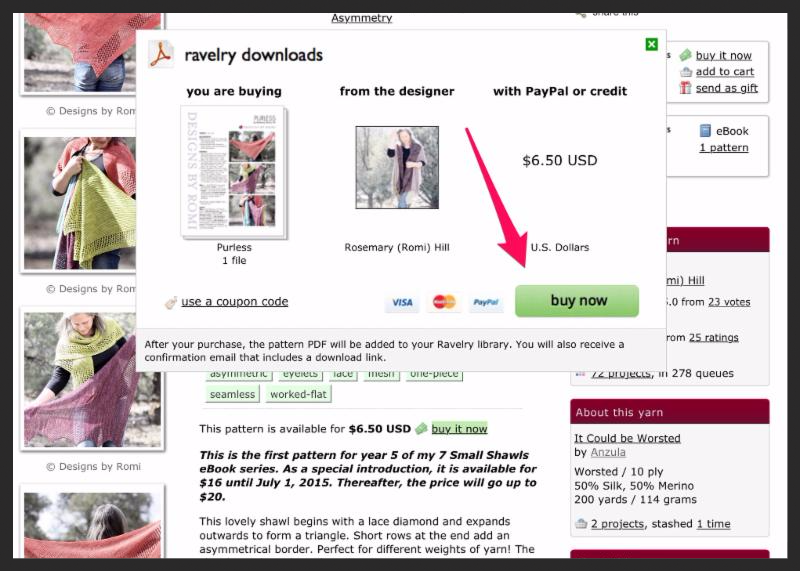
. . . and then click through to pay with PayPal or a credit card:
Note that this pattern is part of an ebook that will contain other patterns as well. Click on the ebook link to get additional information.
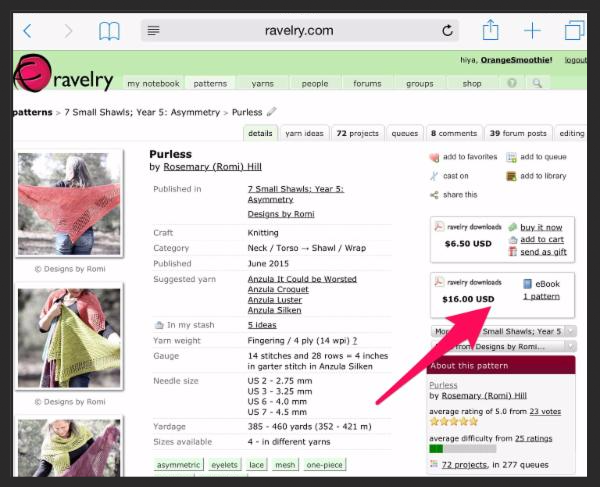
Once you purchase a Ravelry Download, it will be added to your Library. I'll cover your Library in a future newsletter, but feel free to explore in the meantime!
Now you know how to search for a pattern with a few of Ravelry's different filters! There are many more filters you can use (try Attributes/Fabric Characteristics to search for cables or lace) so click away to see what you get!